No matter your party affiliation or political leanings, this site offers a major opportunity for Americans to talk with each other on a government web site. Whether or not the questions are taken seriously and read by our public servants remains to be seen, but it offers an incredibly easy method of asking, rating, and searching questions about our government and country.
I applaud the White House for attempting such an endeavor, and the site is extremely easy to navigate and interact with…two technological feats not always obtained. I will be keeping an eye on it for a few months and see what happens with it. Tonight alone, I’ve asked 2 questions and rated almost 80 others.
Let me what you think of the site when you visit it by leaving comments below.
I need to clean up a few rough edges over the next few days, but the site is far enough along that I moved over to it today. I redesigned the site for a few reasons:
Make it easier to navigate (cleaner),
Make it easier for you to interact with the site via comments, RSS and search.
Make it easier for me to post even more content
Make it easier to add new features to the site without cluttering up the navigation.
I believe that I’ve met all these goals with the new design and engine (WordPress). All the content from the old site is here, but if you encounter any problems or dead ends, please alert them to me by leaving a comment or contacting me via the new “ask a question” link at the top of all pages.
The new newsletter deliver system will be online by tomorrow as well.
Thanks for all your support. Enjoy, learn and explore the new site and always remember to spread the word about HelpMeRick.com!
Sunday morning update 8/17/08: Grisosft has already corrected the .bin problem and the panic is over. You can RIGHT click your AVG icon by your clock and click Check for Updates, then update on the screen that appears and all will be well again. This was a perfect example demonstrating that when something goes awry with your computer, the best thing to do is to remain calm and patient. The problem will get resolved automatically much of the time. If you start monkeying around with settings and changing and reinstalling programs, the problem will only get worse.
A panic is ensuing all over the web about a .bin error with AVG. Your computers are still protected and AVG will fix the .bin problem. It appears that part of one of their updates was corrupted or in conflict with Windows. Grisoft cleans up these problems pretty quickly…hang in there and don’t panic it will probably resolve within 24-36 hours at the latest.
Again, however, AVG is still protecting your computer and this error is just temporary.
IF you don’t want to wait for the automatic fix, you can try these steps below which will manually get the error to subside…but again, YOU ARE PROTECTED AND THE ERROR IS NO REASON TO PANIC.
Create a new folder on your desktop and name it AVG Update.
While working with a small business client today, they asked how to insert a picture into a Word document from their scanner. “Oh, that’s an easy one”, I said to myself. Then I realized they were using the new Office 2007.
In all previous versions of Microsoft Word and other word processor worth their weight, you follow these steps to insert a picture from a scanner into a document:
Click Insert from the menus
Click Picture –> From Scanner or Camera
Use your scanner software to select and scan the item you want and it instantly appears in the document
I looked for the same feature in Word 2007, and it wasn’t there. I immediately clicked to the Help menu in Word and searched for scanner. The first item in the search results (from Microsoft…not on the web) was: “Where did the Insert Picture from Scanner feature go”? Clicking the item reveals this fun fact from Microsoft:
The From Scanner or Camera option for adding pictures to a document is not available in Microsoft Office Word 2007. Instead, you can add pictures from your camera or scanner by downloading the pictures to your computer first and then copying them from your computer into Word.
Wow! Great job Microsoft…let’s take away features that are useful and have been around for years and add features and interfaces that decrease our productivity! Thanks.
Now let’s go through the steps to Insert a picture from a scanner into a Word 2007 document:
Click Start
Click All Programs
Click the Windows Photo Gallery application
Click File from the menus
Click Import from Scanner or Camera
Click the name of your scanner
Click Import
Click Preview button to see your scan
Click Scan when ready
Add keywords to your scan
Click OK
Close Windows Photo Gallery
Start Microsoft Word
Click the Insert tab from the Word Ribbon
Click the Picture button
Navigate to where the scan was saved (usually Pictures –> then a folder named with the date you scanned the picture)
Double-click the pictures
After you finish with your Word document, remember to go back and delete the scan because you didn’t really want to save it…just insert it into a Word document!
Woo hoo!! A brand new program that has already decreased my productivity by moving items around and making me hunt for features I could find in a second on older versions and taken away tried and true drop down menus has now taken away a feature that for more than 12 years could be accomplished in 3-4 steps and turned it into an 18 step feature! I challenge anyonereading this to show me how this is in-any-way-shape-or-form progress?
These techniques should be standard tools for any computer user. However, many computer users find these techniques elusive.
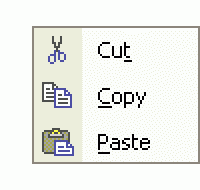
The ability to move (cut) or copy information from one computer program to another sets you free to do so much more with your computer. Cut, Copy and Paste function by temporarily storing the information, cut or copied, into a temporary holding spot of memory known as the clipboard (Click here for the Webopedia definition).
The information held in the clipboard stays there and is available to Paste until either the computer is restarted or another item is cut or copied. Make special note of this fact when using the “Cut” command, because if you cut or copy another item before pasting the first item, the first one is lost.
Before choosing Cut or Copy, the computer needs to know what you want to cut or copy. This is done by using the mouse to select or highlight the item or items. I have two tips that describe the art of selecting or highlighting text and files.
Copying and pasting text from a web site to an email will provide a useful method of practicing this technique…here’s how:
Find some text to copy (this tip will do) and highlight the text with your mouse
Click Edit from the menus
Click Copy
Switch over to your email program and start a new email
Put your cursor (blinking vertical line) in the body of the message
Click Edit from the menus
Click Paste
Pretty nifty, eh? You can use this very same technique to copy and paste text from email to email, from your word processor to email (or vice versa), from the web to your word processor, etc.
Copy and Paste Shortcuts
Instead of clicking Edit and Copy, you can push Ctrl + C on your keyboard or RIGHT click on the text you highlighted and click Copy from the menu.
Instead of pushing Edit and Paste from the menus, try Ctrl + V or Shift + Insert on the keyboard or RIGHT click at your destination and choose Paste from the menus.
Copy and Paste with Folders and Files
Copying and pasting files and folders works the same way as copying and pasting text…here’s how:
Click on a file (like a Word document or picture) or a folder (like My Documents)
Click Edit from the menus
Click Copy
Navigate to a different folder or drive
Click on the new folder’s name
Click Edit from the menus
Click Paste
When using Cut, Copy and Paste with files and folders, be very cognizant of the fact that one you copy or cut another item, the previous one is gone. Make darn sure that you have pasted the information you don’t want to lose before cutting or copying a new item.
Keep practicing your cut, copy and paste techniques, and I’m sure you will find them an irreplaceable part of your computer knowledge.
For a visual demonstration of how this extremely important and helpful computer skill is, watch the how-to video below:
If this tip doesn’t change your life, it can change your cube mates life or someone’s life who uses Excel a lot.
This short (4 minute) video demonstrates the power of knowing how to quickly navigate around a spreadsheet without using the vertical or horizontal scroll bars.
Even if you don’t use Excel, watch the video…it is like a magic show you might see in Las Vegas.
I know that downloading can be fun and pop-ups can be enticing. But when it comes to most system utilities (programs supposedly designed to help your computer), just say “NO!” One of the worst add-on utilities you can get is the so-called “registry cleaner”. First, let me try to define the registry. Starting with Windows 95 and all versions of Windows since then, Microsoft has employed a large and complex database that tracks all hardware, software, user settings, drivers, and more for our computer. This “database” of information controls everything we do with our computers from the installation of software, customization of the desktop and more importantly how all the programs we use interact with each other and with Windows.
If that sounds imposing already, imagine that any computer user (usually technicians only) can navigate this labyrinth of information and make adjustments or tweaks or hacks to the registry. One wrong move in the registry and your computer can be rendered useless. Thus my “3 Reasons NOT to use Registry Cleaners”:
Many of the “free” Registry Cleaners found online contain spyware and can slow your computer down to a crawl.
Registry Cleaners are designed to look for dead wood or expired entries and then delete those entries.As I mentioned already, one wrong move in the registry can crash your computer. Do you trust a computer program to make all the right moves?
Problems caused from registry damage caused by these ridiculous utilities can cost you hundreds of dollars in repair bills and/or lost data.
The best way to keep your registry clean is to first and foremost not install extraneous software that you don’t or won’t use. When you do try a program and find that you don’t like it, use the Add/Remove program utility in the Control Panel to remove the program. Using Add/Remove gives your computer the best chance of erasing the registry changes that the program made.
I found this answer at this site: Optimizing your PC So, I haven't tried it or had to use it, but the process seems plausible.
In some cases Outlook doesn't save your password, even if you enable the option to save the password. This error is caused by a malfunctioning of the Protected Storage Space from Windows. To solve this problem, run the registry editor and navigate to the key HKEY_CURRENT_USER\Software\Microsoft\Protected Storage System Provider. You will find a key with a long name starting with S-1-5-21 which you have to delete (probably it's save to create a back-up of this key by File, Export). In most cases the problem is solved and next time the passwords will be saved. Be carefull: by doing this you will lose all stored passwords. Read the back-up page how to recover these passwords.
If this doesn't solve the password issue (or if it's not possible to delete the key), there is probably a problem with the permissions of your user account. Select the key Protected Storage System Provider, right click on it and choose Permissions, button Advanced. Make sure that your user account has Full Control for this key and subkeys. Activate the option Reset permissions on all child objects and enable propagation of inheritable permissions, click OK and repeat the earlier mentioned procedure. If needed, check the Microsoft KB files (http://support.microsoft.com/kb/290684). Here you will find more information how to reset the protected storage system provider.
One more day left in our first annual "Ubuntu Week", and I have another great tip for all of us Ubuntu beginners. In Ubuntu, there is no "Start" button like Windows. Instead, I think the Ubuntu creators came up with a more elegant and intuitive format for accessing programs we use, navigating our saved files, networks and operating system options and preferences.
Watch the video below for a video and audio tour of Ubuntu's navigation options.
I have been so busy lately, that I haven't had much of a chance to play around with my Ubuntu Linux (alternative to Windows) machine. Last night, I updated to the latest version of Ubuntu Linux 7.04 for free. Compare that to the minimum of $179 you would pay for the basic version of Vista. I was motivated to do the update not only because I promised I would learn more about Linux, but also because Dell released a story yesterday announcing their plans to sell Linux laptops and desktops computer starting this summer. It seems that Microsoft keeps getting hit day-after-day. Where will they be in 5 years? They certainly don't have the stature today that they had 5 years ago.
As you know, I installed Vista on my computer about eight weeks ago and have been moaning and groaning about it since then. My Vista computer has an extremely fast dual-core processor, 2 GB of RAM and a nice video card. Despite all that power and turning off 90% of the visual fluff in Vista, I don't think the machine runs as fast as my old Pentium IV 2.0 Ghz machine with 512mb of RAM.
On the other hand, this older piece mealed machine that I put together with parts from four different computer is a screamer with Ubuntu Linux on it. The Internet feels faster and more responsive, office programs are faster, the operating system is clean and easy to navigate. I'm having a ball for the first time in years learning about new technology.
Vista seems like an unnecessary chore. Ubuntu Linux seems like time well spent on a promising and exciting operating system.